IC Markets





























Can You Add Custom Indicators on the MT5 Mobile App?
No: the MT5 mobile app only runs its built-in indicators, not custom MQL5 indicators or Expert Advisors. Here is what you can do on a phone instead, and how to keep your desktop setup available.
 WriterAbir KhanWriterWrites the guides · checks every figure against primary sources View profileAbout Abir →
 Market analysisTanbir Habib RiyadForex & Crypto AnalystForex and crypto analyst · technical and fundamental analysis View profileAbout Tanbir →
 Fact-checking & riskJannatul FerdaushFact-Checker & Risk AnalystFact-checks every figure · risk analysis · Applied Statistics, University of Dhaka View profileAbout Jannatul →
 Trading reviewJowel RanaCo-Founder & Forex TraderCo-founder · forex trader · reviews guides from a trader's view View profileAbout Jowel →
 Final approvalRanjan NiskrityFounder, Owner & Forex TraderFounder and owner · forex trader · signs off every guide View profileAbout Ranjan →
You cannot add custom indicators to the MetaTrader 5 mobile app. The iPhone and Android apps run a fixed set of built-in indicators and cannot load MQL5 programs, so custom indicators, scripts and Expert Advisors downloaded for desktop do not work on a phone. This is a limit of the apps themselves, not of your broker.
There are still good options: use the built-in indicators, recreate a custom tool with built-in ones, run your desktop setup on a VPS and view it remotely, or chart on an app that supports custom scripts and trade in MT5. Each is covered below.
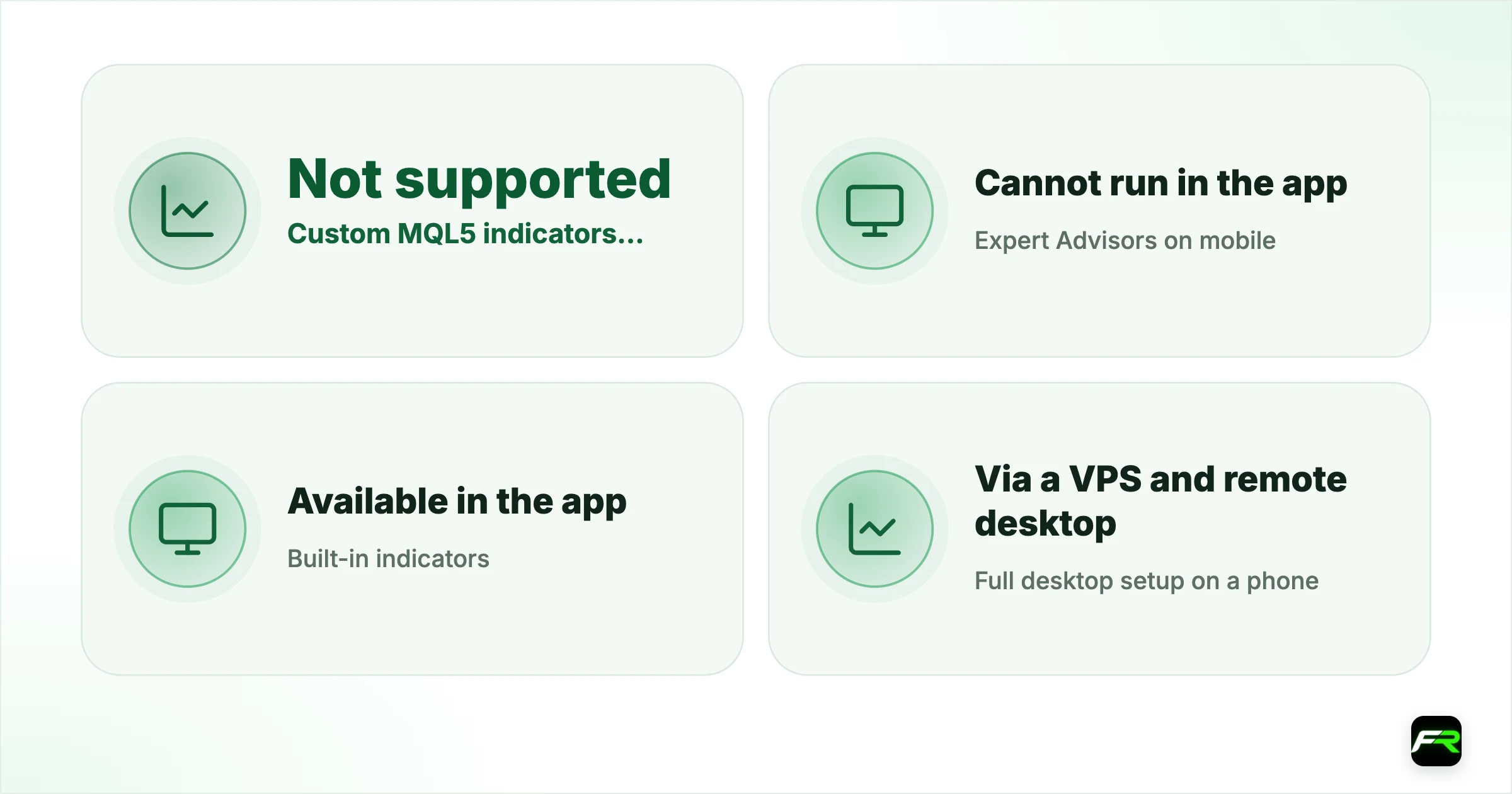
| Custom MQL5 indicators on mobile | Not supported |
|---|---|
| Expert Advisors on mobile | Cannot run in the app |
| Built-in indicators | Available in the app |
| Full desktop setup on a phone | Via a VPS and remote desktop |
| Alerts from custom tools | Desktop MT5 can push them to your phone |
Why the mobile app cannot run custom indicators
Custom indicators are small MQL5 programs compiled for the desktop terminal. The mobile apps do not include the engine that runs those programs, so there is no place to install an .ex5 file. MetaQuotes built the apps for charting, order entry and account management, keeping heavy processing on desktop and servers.
The same applies to Expert Advisors and scripts. If your strategy depends on one, the trading logic must run on a computer or VPS, with the phone used for monitoring and manual control.
Option 1: use the built-in indicators
The app includes the classic indicators most strategies use, among them moving averages, Bollinger Bands, RSI, MACD, Stochastic, ATR and Ichimoku. Tap the indicator icon on a chart, choose the indicator and set its parameters. Many custom indicators are combinations or variations of these, so you can often rebuild the essentials with two or three built-in ones.
| Common custom tool | Built-in alternative on mobile | What you lose |
|---|---|---|
| Multi-timeframe moving average | Same moving average on each timeframe chart | Seeing both on one chart |
| Custom RSI with alerts | Built-in RSI plus a price alert near the level | Automatic alerts on the indicator value |
| Session boxes | Vertical lines drawn at session times | Automatic boxes each day |
| Supply and demand zones | Rectangles drawn by hand | Automatic zone detection |
| ATR-based stop levels | Built-in ATR, stop worked out by hand | Automatic stop lines |
Option 2: run desktop MT5 on a VPS
Install desktop MT5 with your custom indicators on a virtual private server and connect to it from your phone with a remote desktop app. You see exactly the same charts and tools as on your computer. Several brokers offer a free VPS above a monthly volume; see FP Markets VPS and Exness VPS.
Remote desktop on a small screen is fiddly for placing trades. Many traders use the VPS for analysis and alerts, then place the trade in the normal MT5 app.
Option 3: push alerts from desktop
If your custom indicator can raise alerts, desktop MT5 can send them to your phone as push notifications. In the mobile app, find your MetaQuotes ID in Settings or Messages. On desktop, open Tools, Options, Notifications, enable push notifications and enter that ID. Keep the desktop terminal running, ideally on a VPS, and the indicator's alerts arrive on your phone.
Saving templates for when you are back at a desk
Desktop MT5 saves your chart layout, custom indicators and settings as templates and profiles. Save one for each strategy with File, Profiles, Save As. When you return to a computer or log in to a VPS, loading the profile brings back every chart exactly as you left it. The mobile app keeps its own chart settings, so set it up once with the built-in tools you rely on.
Keeping the two setups similar helps. If the desktop uses a 50-period moving average and a 14-period RSI, add the same built-in versions in the app, so a chart on the phone looks close to the one on your screen at home.
Drawing tools on mobile
The app includes trend lines, horizontal lines, channels, Fibonacci tools and rectangles. Many traders use these instead of custom indicators: a few hand-drawn support and resistance levels often matter more than an automatic tool. Lines drawn in the app stay on that phone's charts, so draw your key levels once at the start of the week.
Broker apps with more tools
Several brokers build their own trading apps alongside MetaTrader, and some include TradingView charts with a much wider indicator library than the MT5 app. Trades placed there go to the same account, so you can chart in the broker's app and still use MT5 on desktop. Our Exness app guide and XM app guide describe two of them. Custom MQL5 tools still will not run there, but many traders find the extra built-in indicators cover what they need.
Option 4: chart elsewhere, trade in MT5
Charting apps such as TradingView support custom scripts written for their own platforms and run them on mobile. Some brokers connect their accounts directly to TradingView; others do not. Our guide to brokers for TradingView covers which ones connect, and for the rest you can analyse in one app and trade in MT5.
A trader in Accra uses a custom session-box indicator and an RSI divergence tool on desktop MT5. On the phone, sessions are marked with vertical lines at fixed times and divergence is checked with the built-in RSI. For alerts, desktop MT5 runs on a broker VPS and pushes divergence alerts to the phone through the MetaQuotes ID, so nothing is missed during the work day.
Keep a short written checklist of what your custom indicators show. On mobile, you can then check the same conditions by eye with built-in tools.
Apps claiming to add custom MT5 indicators to the mobile app are not from MetaQuotes. Never enter your trading password into a third-party app that promises this.
Frequently asked
Can I install custom indicators on MT5 Android or iPhone?
No. The MT5 mobile apps run only their built-in indicators and cannot load MQL5 programs. Custom indicators, scripts and Expert Advisors work only in the desktop terminal, or in desktop MT5 running on a VPS.
Can I run an Expert Advisor on my phone?
Not in the MT5 app. Run the EA in desktop MT5 on a computer or VPS that stays online, and use the phone to monitor positions and receive push notifications. You can still close or adjust trades manually from the app.
Which indicators are available on MT5 mobile?
The app includes the common built-in indicators such as moving averages, Bollinger Bands, RSI, MACD, Stochastic, ATR and Ichimoku, plus drawing tools. Tap the indicator icon on any chart to see the full list on your version.
How do I get custom indicator alerts on my phone?
Set up push notifications in desktop MT5 with your phone's MetaQuotes ID, found in the mobile app. When the custom indicator triggers an alert on desktop, MT5 sends it to your phone. Keep the desktop terminal running.
Is a VPS worth it for mobile traders?
If you rely on custom indicators or EAs, often yes. A VPS keeps desktop MT5 running all week, so tools and alerts keep working while you use the phone. Several brokers provide one free above a monthly trading volume.
Can I use TradingView indicators with MT5?
Not directly. TradingView scripts run on TradingView. You can analyse there and trade in MT5, connect a broker that supports TradingView, or use bridge tools that turn TradingView alerts into MT5 orders, which need careful testing.
Official sources: MetaTrader 5 Help
Related reading
The team behind this guide
Researched, checked and approved by five forex specialists
Every guide is written, fact-checked and edited before it goes live, and updated when the facts change. Spotted an error? Tell us.