IC Markets





























MT5 New Order Button Greyed Out? 7 Causes and How to Fix Each
A grey New Order button in MetaTrader 5 almost always has one of seven causes, from a read-only password to a closed market. Here is how to find yours in under two minutes.
 WriterAbir KhanWriterWrites the guides · checks every figure against primary sources View profileAbout Abir →
 Market analysisTanbir Habib RiyadForex & Crypto AnalystForex and crypto analyst · technical and fundamental analysis View profileAbout Tanbir →
 Fact-checking & riskJannatul FerdaushFact-Checker & Risk AnalystFact-checks every figure · risk analysis · Applied Statistics, University of Dhaka View profileAbout Jannatul →
 Trading reviewJowel RanaCo-Founder & Forex TraderCo-founder · forex trader · reviews guides from a trader's view View profileAbout Jowel →
 Final approvalRanjan NiskrityFounder, Owner & Forex TraderFounder and owner · forex trader · signs off every guide View profileAbout Ranjan →
A grey New Order button means MetaTrader 5 will not let this login send a trade right now. The platform is not broken. It is telling you that something about the account, the connection or the symbol blocks trading, and the cause is nearly always one of seven things.
You can find which one in under two minutes by checking them in the order below, starting with the quickest. The same checks work on the desktop terminal, the web terminal and the mobile app, although the screens look slightly different.
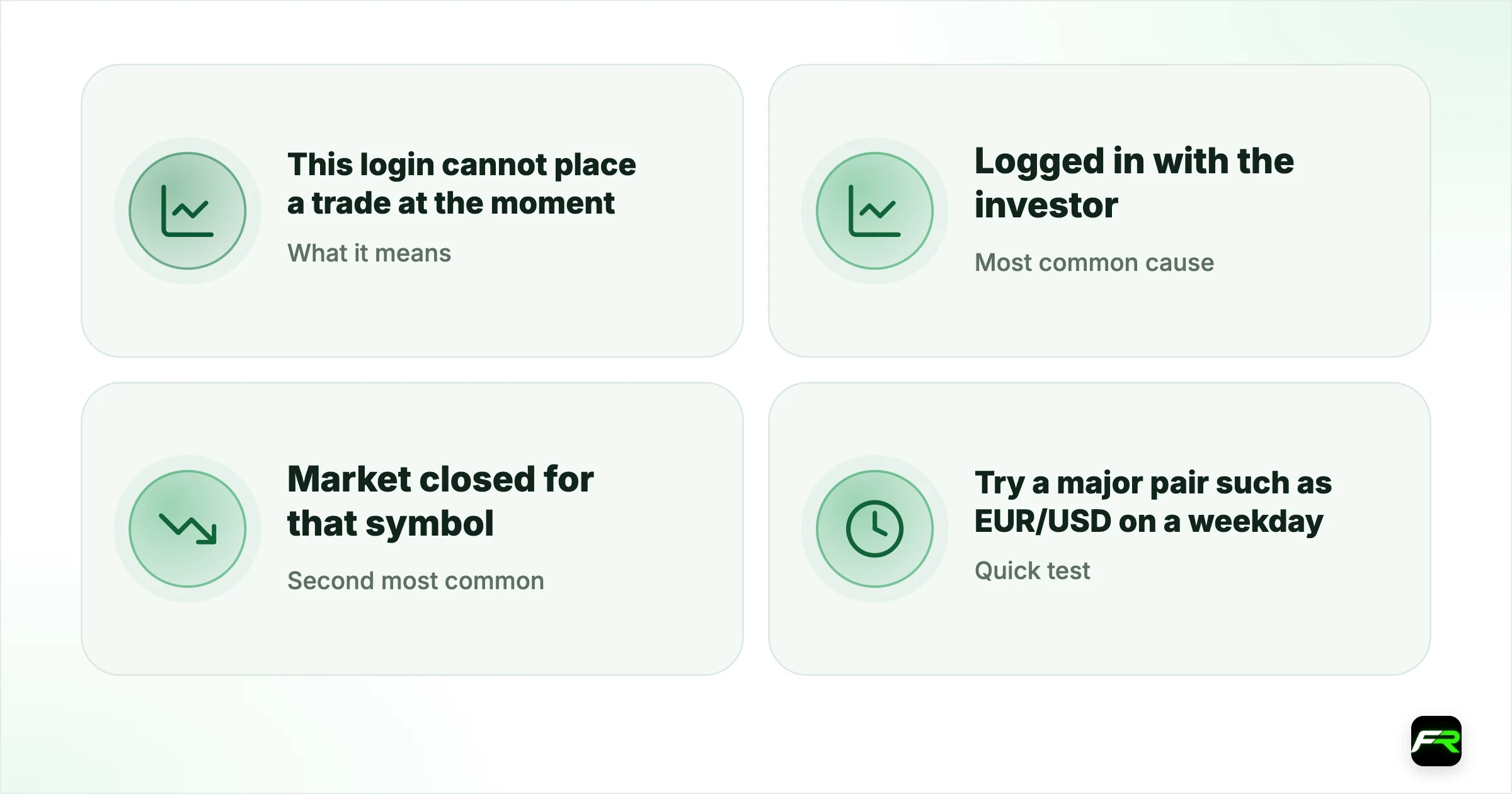
| What it means | This login cannot place a trade at the moment |
|---|---|
| Most common cause | Logged in with the investor (read-only) password |
| Second most common | Market closed for that symbol |
| Quick test | Try a major pair such as EUR/USD on a weekday |
| Who can fix it | You, for six of the seven causes |
The seven causes, quickest to check first
| Cause | How to spot it | Fix |
|---|---|---|
| Investor password | Account works, charts move, but no trading at all | Log in again with the master (trading) password |
| Not connected | Bottom-right corner shows "No connection" or a red bar | Pick another server or restart the terminal |
| Market closed | Only some symbols greyed out, often at weekends | Check the trading sessions in the symbol's Specification |
| Symbol disabled or close only | One symbol greyed out, others work | Use the correct symbol suffix for your account type |
| Account not funded | New live account, never deposited | Complete the first deposit with your broker |
| Demo expired | Old demo login, quotes may still show | Open a new demo account |
| Account restricted | Broker email about verification or compliance | Contact the broker; finish verification |
1. You logged in with the investor password
Every MetaTrader account has two passwords. The master password allows trading, while the investor password opens the same account in read-only mode, so you can watch positions and history but cannot open, close or change anything. Brokers often email both at once, and it is easy to save the wrong one in the login box.
To check, open the Navigator, right-click your account and choose Login to Trade Account. Enter the master password and tick Save password. If the button turns green straight away, that was the problem. Our guide to investor and master passwords explains when sharing the read-only one is safe.
2. The terminal is not connected
MetaTrader shows connection status in the bottom-right corner. A message such as No connection, Invalid account or a constantly cycling server name means the platform has not reached the broker. Without a live connection the trade button stays grey even though old prices may still sit on the chart.
Right-click the status area and choose Rescan servers, or select another access point from the list. On mobile, log out and back in. If none of that works, check that the server name in your login matches the one in your broker's welcome email, since live and demo servers are separate.
3. The market is closed for that symbol
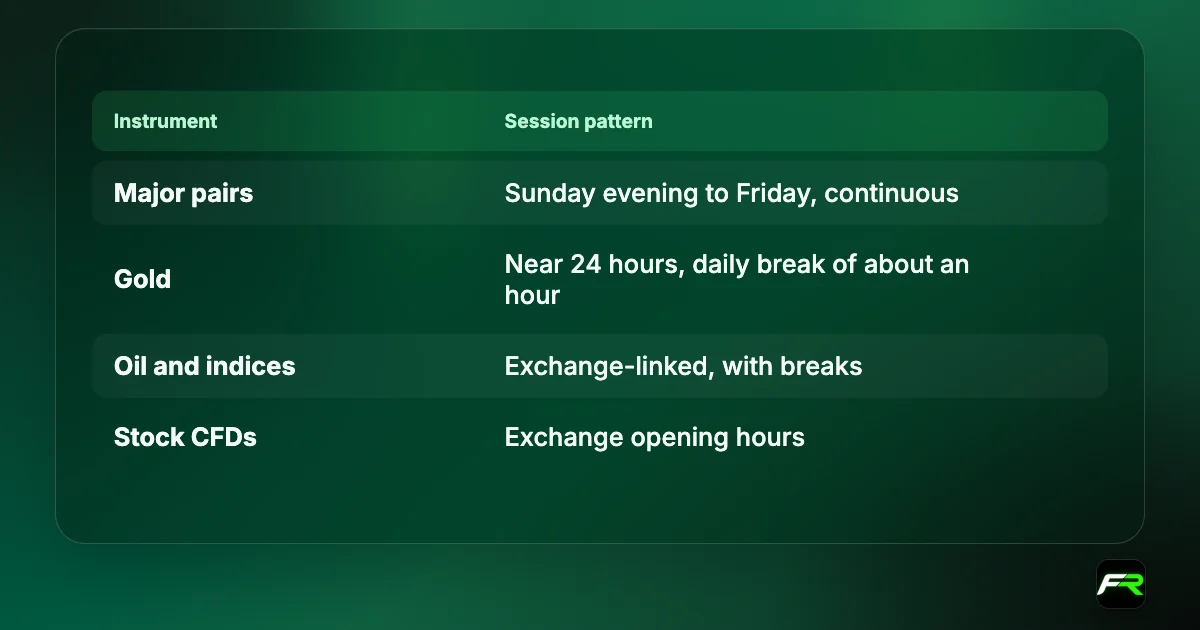
Forex trades from Sunday evening to Friday evening in New York time, but every symbol has its own sessions. Gold and many indices stop for a short break each day, stock CFDs follow their exchange hours, and public holidays close some markets entirely. When a symbol's session is shut, its trade button goes grey while others stay active.
Right-click the symbol in Market Watch, open Specification and read the Sessions table. Times are shown in server time, which is often two or three hours ahead of GMT. Our forex market hours tool converts the main sessions to your own clock.
4. The symbol is disabled or set to close only
Brokers list different versions of the same instrument for different account types, often with a suffix such as .m, .raw or a trailing letter. If your account cannot trade a version, that line stays grey. Some symbols are also moved to close-only during corporate actions or before an instrument is removed, which lets you exit but not open.
Look for a second listing of the same pair with a suffix. Right-click Market Watch, choose Symbols, search the pair and show the version that matches your account type. The Specification window shows Trade: Full access when trading is allowed.
5 to 7. Account status problems
- Unfunded live account. Many brokers keep a new live account in read-only mode until the first deposit clears. Check the deposit status in your client area.
- Expired demo. Demo accounts close after a period of inactivity, typically somewhere between two weeks and three months depending on the broker. Old logins can still show prices for a while. Open a fresh demo.
- Restricted account. Missing documents, a compliance review or an unpaid negative balance can lock trading. These always come with an email or a notice in the client area, so search your inbox before contacting support.
A trader in Lagos opens a new MT5 account on Sunday afternoon, logs in with the password from the welcome email and finds every symbol grey. Two causes overlap: the email listed the investor password first, and the forex market had not yet opened. Logging in with the master password fixed the first, and the buttons turned green when the market opened at 22:00 server time.
Keep the master password in a password manager and never type it into a website that is not your broker's own client area. Treat the investor password as the only one you ever share.
When the button is green but trades still fail
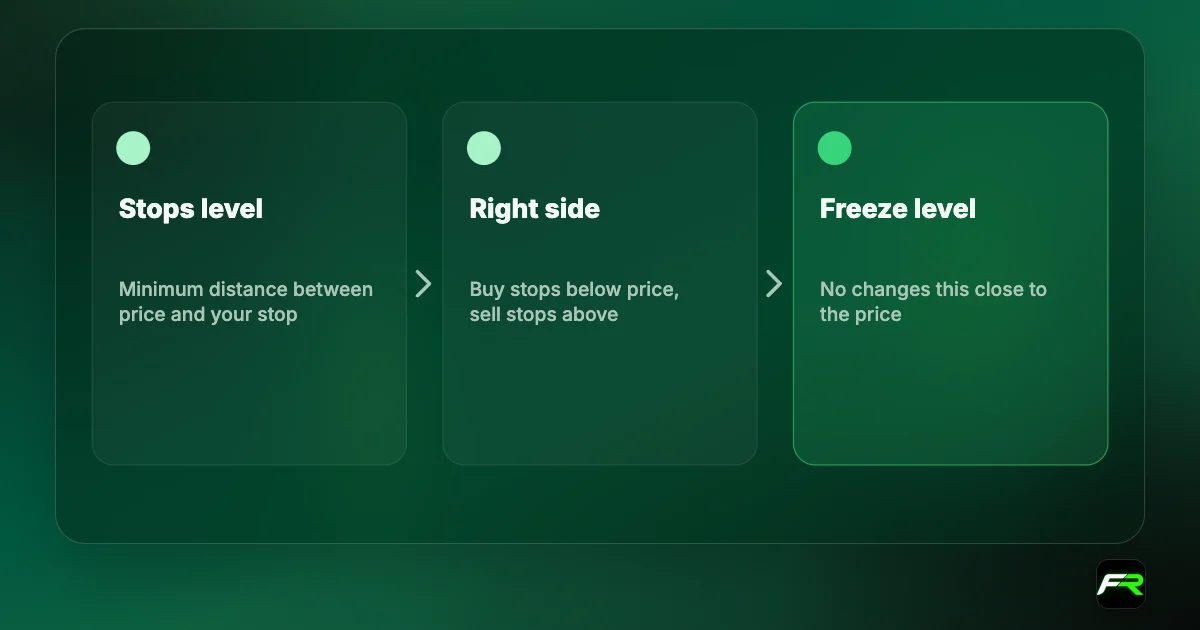
A working button does not guarantee a trade goes through. Errors such as Invalid volume, Not enough money or Invalid stops appear in the Journal tab after you click. Each has its own fix, and the Journal message tells you which one to read.
Codes and names come from MetaQuotes' own MQL4 and MQL5 documentation. Menu names can differ slightly between broker builds of MetaTrader.
Reading the Journal and Experts tabs
MetaTrader writes every failed request to the Journal tab at the bottom of the terminal, with the time, the symbol and the server's answer. When the New Order button is grey you will not see an entry, because nothing was sent. Once it is green, any failure appears there, and the wording matches the error names in MetaQuotes' documentation.
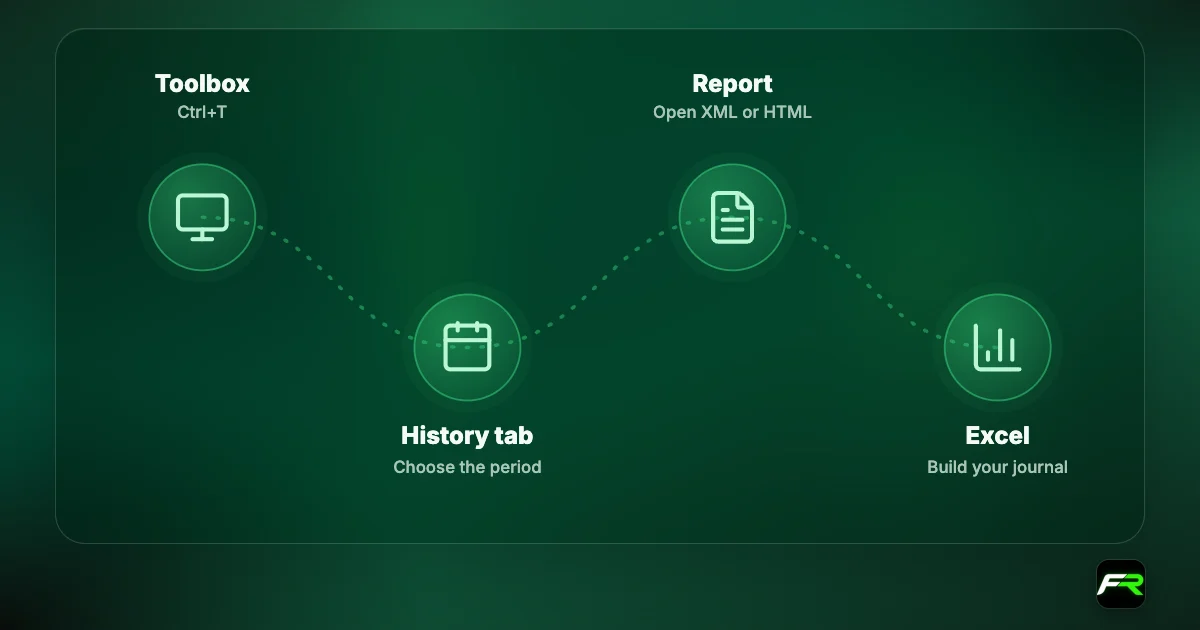
Open the Toolbox with Ctrl+T on desktop and select Journal. On the mobile app, the same log sits under Settings, then Journal. Copy the exact line when you contact support. A message such as "trade disabled" or "invalid account" tells the broker where to look straight away and saves a long exchange of emails.
Expert Advisors write their own messages to the Experts tab. If an EA cannot trade, check for an AutoTrading button that is switched off on the toolbar, and in the EA's settings make sure Allow Algo Trading is ticked. A grey button on the chart's EA icon, rather than the New Order button, points to this setting.
Checklist before you contact support
- Log in again with the master password and the server name from the welcome email.
- Confirm the connection status shows a ping in milliseconds, not No connection.
- Try EUR/USD during the London or New York session.
- Check the symbol's Specification for Trade: Full access and its session times.
- Look in your client area for deposit, verification or restriction notices.
- Copy the latest Journal lines and the time they appeared.
Working through the list usually takes two minutes and solves the problem without a support ticket. If it does not, the details you gathered let the broker answer on the first reply.
Frequently asked
Can an antivirus or firewall grey out the MT5 button?
Indirectly. If security software blocks MetaTrader from reaching the broker, the terminal shows No connection and trading stays disabled. Allow the terminal through the firewall, or test on another network such as a phone hotspot, to see whether the connection is the cause.
Why can I see prices but not trade in MT5?
You are most likely logged in with the investor password, which opens a read-only view of the account. Prices and positions show normally, but every trading control is disabled. Log in again from the Navigator using the master password from your broker's welcome email.
Why is only one symbol greyed out?
That symbol is either outside its trading session or not available on your account type. Check the Sessions table in its Specification window, and look in the Symbols list for a version with a suffix that matches your account, such as a raw or micro listing.
Does a grey New Order button mean my broker blocked me?
Rarely. Six of the seven common causes are on your side or the market's, such as the wrong password or a closed session. A broker restriction always comes with an email or client-area notice explaining what is needed, usually documents or a deposit.
How do I fix the New Order button on the MT5 mobile app?
Log out of the account in the app, then log in again with the master password and the exact server name from your broker. Check that the symbol is in its trading hours. If one symbol stays grey, add its suffixed version from the symbols list.
Can an expired demo account still show prices?
Yes, for a time. The login may still connect and stream quotes after the account has expired, but trading is disabled. Brokers delete inactive demos after their own deadline, so the simplest fix is to open a new demo account from the platform or client area.
Official sources: MQL5: trade server return codes · MQL4: error codes · MetaTrader 5 Help: trading basics
Related reading
The team behind this guide
Researched, checked and approved by five forex specialists
Every guide is written, fact-checked and edited before it goes live, and updated when the facts change. Spotted an error? Tell us.