IC Markets





























MT5 One-Click Trading: How to Turn It On, and the Risks
One-click trading lets MT5 send an order the moment you click, with no confirmation window. It is faster and far less forgiving. Here is how to enable it on desktop and mobile, and when to leave it off.
 WriterAbir KhanWriterWrites the guides · checks every figure against primary sources View profileAbout Abir →
 Market analysisTanbir Habib RiyadForex & Crypto AnalystForex and crypto analyst · technical and fundamental analysis View profileAbout Tanbir →
 Fact-checking & riskJannatul FerdaushFact-Checker & Risk AnalystFact-checks every figure · risk analysis · Applied Statistics, University of Dhaka View profileAbout Jannatul →
 Trading reviewJowel RanaCo-Founder & Forex TraderCo-founder · forex trader · reviews guides from a trader's view View profileAbout Jowel →
 Final approvalRanjan NiskrityFounder, Owner & Forex TraderFounder and owner · forex trader · signs off every guide View profileAbout Ranjan →
One-click trading in MetaTrader 5 sends an order as soon as you click Buy or Sell, without the usual confirmation window. On desktop you turn it on in Tools, Options, Trade, and accept a disclaimer; a small trading panel can then sit in the corner of each chart. The mobile app has the same switch under Settings.
It saves a second or two on each order, which matters to scalpers and news traders. That speed also removes the last chance to catch a wrong lot size or a wrong symbol, so it is worth setting up with care.
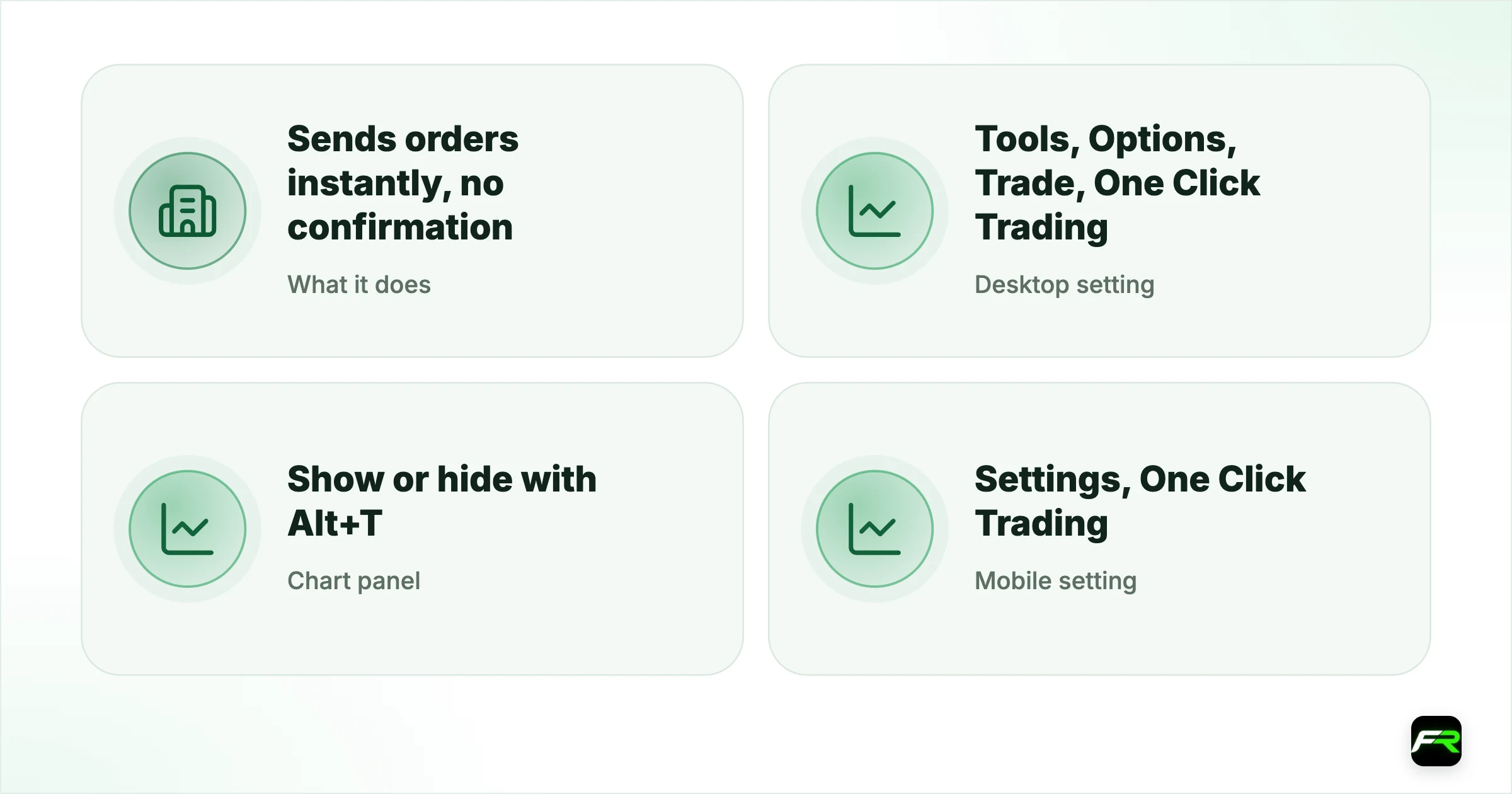
| What it does | Sends orders instantly, no confirmation |
|---|---|
| Desktop setting | Tools, Options, Trade, One Click Trading |
| Chart panel | Show or hide with Alt+T |
| Mobile setting | Settings, One Click Trading |
| Main risk | Wrong lot size or symbol sent at once |
How to turn it on in desktop MT5
- Open Tools, then Options.
- Go to the Trade tab.
- Tick One Click Trading.
- Read the disclaimer, tick that you accept it, and click OK.
- On a chart, press Alt+T or right-click and choose One Click Trading to show the panel.
The panel shows Sell and Buy buttons with the current prices and a volume box between them. Clicking a button sends a market order at that volume immediately. You can also drag stops and targets on the chart and use the order window's settings, which then apply without confirmation.
How to turn it on in the mobile app
In the MT5 app, open Settings and switch on One Click Trading, then confirm the warning. On a chart, a small trading panel appears for quick buys and sells. The setting applies to the app on that phone only, so your desktop terminal keeps its own setting.
Settings to check before using it
| Setting | Where | Why it matters |
|---|---|---|
| Default volume | Tools, Options, Trade (desktop) | Every click uses this unless changed |
| Volume box on the panel | One-click panel on each chart | Easy to leave a large size from a previous trade |
| Deviation | Tools, Options, Trade | Controls fills on instant-execution accounts |
| Symbol on the chart | Chart title bar | Panel trades the chart's symbol, not the one you meant |
| Account in use | Navigator | One click on a live account, not a demo |
Who benefits, and who should not use it
Scalpers who place many short trades a day save real time, and traders who enter at news releases avoid an extra click at the busiest moment. Traders who place a few positions a week gain almost nothing, because the confirmation window costs a second and gives a useful pause.
Beginners are better off with it switched off. The confirmation window shows the symbol, volume and price once more, which catches mistakes such as typing 1.0 lots instead of 0.10. Our guide to lot sizes for small accounts shows how big that difference is.
A trader in Cairo uses one-click trading for gold scalps at 0.05 lots. After testing a bigger size on a demo chart, the trader switches to the live chart, where the panel still shows 0.50 from an earlier test, and clicks Buy. The position is ten times the plan. Closing it quickly cost $45 instead of $4.50. The trader now resets the panel volume after every session and keeps one-click trading off on demo charts.
One-click trading and Depth of Market
On instruments where your broker provides market depth, the Depth of Market window lets you place orders by clicking a price level. With one-click trading on, those clicks become orders immediately, including limit and stop orders at the clicked price. It is fast for experienced traders, and easy to misuse by clicking the wrong row. If you use it, keep the volume small until you are used to how it responds.
Keyboard shortcuts and hotkeys
Desktop MT5 opens the order window with F9 and lets you assign hotkeys to other actions in the Navigator. Combined with one-click trading, hotkeys make entries very quick. They also make mistakes quick, so assign them only to actions you use daily, and avoid hotkeys that close all positions unless you are sure you want that power on one key.
Closing trades with one click
One-click trading also changes how positions close. With it on, the close button on a position in the Trade tab, or the cross on the chart's position line, closes the trade at once without asking. That is useful when you need to exit fast, and dangerous if you click near the line by accident while dragging a stop. If you often adjust stops by dragging, consider leaving one-click off and closing through the confirmation window instead.
Testing it on a demo first
Before you switch it on for a live account, use one-click trading on a demo for a week with the same symbols and sizes you trade. Practise opening, adding stops and closing from the panel until the steps feel automatic. Notice how often you would have sent the wrong volume or traded the wrong chart; if it happens more than once, keep the confirmation window for live trading.
Safer ways to use it
- Use it only on accounts and charts you trade every day.
- Set a small default volume and type larger sizes deliberately.
- Keep live and demo terminals visually different, for example with different chart colours.
- Turn it off when you are tired, distracted or trading news you have not planned for.
Pair one-click trading with stops placed by default: set a default stop loss in your trade plan and add it the moment a position opens, before anything else.
One-click trading works on live accounts exactly as on demo. A mistaken click opens a real position immediately, with real spread and slippage costs.
Frequently asked
How do I enable one-click trading in MT5?
On desktop, go to Tools, Options, Trade, tick One Click Trading and accept the disclaimer. Show the panel on a chart with Alt+T. In the mobile app, switch it on under Settings and confirm the warning that appears.
Why is my one-click panel not showing?
One-click trading must be enabled in Tools, Options, Trade first. Then right-click the chart and choose One Click Trading, or press Alt+T. Some chart templates hide it, so try on a fresh chart if it still does not appear.
Is one-click trading risky?
It removes the confirmation step, so a wrong lot size, symbol or account goes straight to the market. For experienced traders who check settings carefully, the risk is small. Beginners usually benefit from leaving it off.
Does one-click trading give better prices?
Not by itself. It saves a second or two between your decision and the order, which can help in fast markets. The fill still depends on your execution type, deviation setting and connection speed.
Can I use one-click trading on MT5 mobile?
Yes. Turn it on in the app's Settings and confirm the warning. A small Buy and Sell panel appears on charts. The setting applies only to that phone, separate from your desktop terminal.
How do I turn off one-click trading?
On desktop, untick One Click Trading in Tools, Options, Trade. In the mobile app, switch it off in Settings. Orders then return to showing the confirmation window before they are sent.
Official sources: MetaTrader 5 Help
Related reading
The team behind this guide
Researched, checked and approved by five forex specialists
Every guide is written, fact-checked and edited before it goes live, and updated when the facts change. Spotted an error? Tell us.