IC Markets





























How to Export MT5 Trade History to Excel or CSV (Desktop and Mobile)
MT5 can save your full trade history as an Excel-ready report in a few clicks on desktop. The mobile app cannot export, but there are other routes. Here is each method and how to use the file.
 WriterAbir KhanWriterWrites the guides · checks every figure against primary sources View profileAbout Abir →
 Market analysisTanbir Habib RiyadForex & Crypto AnalystForex and crypto analyst · technical and fundamental analysis View profileAbout Tanbir →
 Fact-checking & riskJannatul FerdaushFact-Checker & Risk AnalystFact-checks every figure · risk analysis · Applied Statistics, University of Dhaka View profileAbout Jannatul →
 Trading reviewJowel RanaCo-Founder & Forex TraderCo-founder · forex trader · reviews guides from a trader's view View profileAbout Jowel →
 Final approvalRanjan NiskrityFounder, Owner & Forex TraderFounder and owner · forex trader · signs off every guide View profileAbout Ranjan →
To export your trade history from MetaTrader 5, open the History tab in the desktop terminal, pick the period, right-click and choose Report, then save it as Open XML for Excel or as HTML. The file lists every deal, order and position with prices, volumes, commissions, swaps and profit. It takes under a minute.
The mobile apps cannot export history, but your broker's client area usually offers statements you can download, and the web terminal is an option on some brokers. This page covers each route and how to turn the file into a simple trading journal.
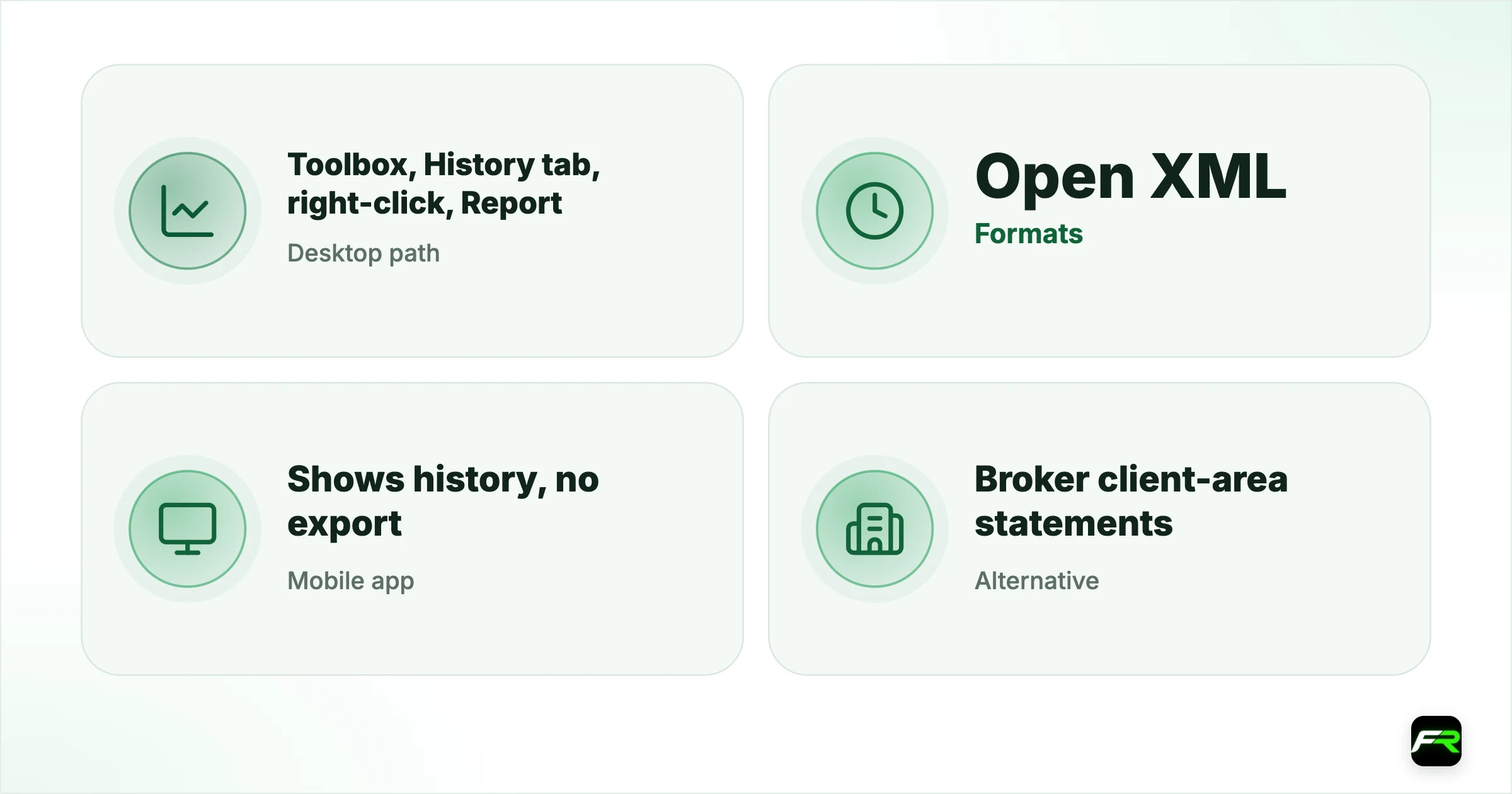
| Desktop path | Toolbox, History tab, right-click, Report |
|---|---|
| Formats | Open XML (Excel) and HTML |
| Mobile app | Shows history, no export |
| Alternative | Broker client-area statements (CSV or PDF) |
| Best use | A monthly journal of results by symbol and setup |
Export from desktop MT5, step by step
- Open the Toolbox with Ctrl+T if it is not visible.
- Click the History tab.
- Right-click inside the list and choose the period: last month, last three months or a custom range.
- Then right-click once more, choose Report, then Open XML (MS Office Excel 2007) or HTML.
- Choose a folder and file name, then save.
- Open the XML file in Excel, Google Sheets or LibreOffice.
Before saving, you can switch the History view between Positions, Deals and Orders using the right-click menu. The report includes all three sections plus a summary of results, so pick Positions on screen only to check you have the right period.
What the report contains
| Section | What it shows | Useful for |
|---|---|---|
| Positions | Each trade's open and close time, price, volume and profit | Win rate and average win or loss |
| Orders | Every order sent, including pending orders and cancellations | Checking fills and missed entries |
| Deals | Each execution, including partial closes, with commission and swap | Exact costs per trade |
| Results | Totals for profit, drawdown and number of trades | A quick monthly summary |
Deposits and withdrawals appear as balance operations in the Deals section. Exclude them when you calculate trading results, or your profit figures will be wrong.
Options when you only have a phone
- Broker statements. Most client areas let you download daily or monthly account statements as PDF or CSV. These are the official record and are often accepted by tax advisers.
- Email statements. MetaTrader servers can email daily statements; your broker controls this, so ask support if you do not receive them.
- Web terminal. Some brokers' MT5 web terminals show full history in a browser, which you can copy into a spreadsheet.
- Journal apps. Third-party journals connect to MT5 with your investor password and import trades automatically. Use only read-only access, never the master password.
Turning the export into a journal
A spreadsheet journal answers questions memory cannot: which pairs make money, which hours lose it, and if your average loss is larger than your average win. Copy the Positions section into a new sheet and add three columns of your own: setup name, reason for entry and a one-line lesson.
Then build a few simple totals: profit by symbol, profit by day of the week, average win, average loss and win rate. A filter or a pivot table does this in minutes. Our trading psychology guide explains why reviewing these numbers weekly changes behaviour more than any indicator.
A trader in Lagos exports three months of MT5 history and finds 64 trades with a 58% win rate but a small net loss. Sorting by symbol shows gold trades lost $410 while EUR/USD and GBP/USD made $290 together. The average gold loss was twice the average gold win. Cutting gold position sizes in half for the next month turned the account slightly positive.
Exporting from several accounts
The History tab shows the account you are logged in to. If you trade several accounts, log in to each in turn and export separately, naming each file with the account number. Combining them in one spreadsheet with an extra Account column lets you compare results between brokers or strategies.
Prop firm accounts are worth keeping too, even after they end. A record of passed and failed challenges shows which rules you tend to break, which is useful before buying the next one. Our prop firm calculator helps you check the numbers before a new challenge.
Common export problems
- Empty report. The period is wrong; choose All history or a custom range that covers your trades.
- Missing trades. The History view is filtered by symbol; reset the filter before exporting.
- File opens as code. Open the XML from inside Excel with File, Open, rather than double-clicking.
- Odd number formats. Your spreadsheet may use commas for decimals; set the import locale to match.
Reading the Results section
The bottom of the report summarises the period: total net profit, gross profit and loss, profit factor, the largest win and loss, and drawdown. Profit factor, gross profit divided by gross loss, is a quick health check; above 1 means the period made money before you look at anything else. Drawdown shows the largest fall from a peak, which says more about risk than the final result does.
Keeping records for tax
Tax authorities in many countries expect traders to keep records of every trade, deposit and withdrawal. Save the broker's annual statement as well as your MT5 exports, because the statement is the official record and includes items such as interest and fees. Our country tax guides, such as forex tax in the UK and SARS record keeping in South Africa, list what to keep.
Export on the first day of each month and save the file with the account number and month in its name. Twelve small files are easier to check than one large one.
Never give a journal app or a stranger your master password. A read-only investor password is enough to read history, and it cannot place trades or withdraw.
Frequently asked
How do I download my trade history from MT5?
On desktop, open the Toolbox, click History, choose the period from the right-click menu, then choose Report and save as Open XML or HTML. The XML opens in Excel or Google Sheets with every position, order and deal for the period.
Can I export history from the MT5 mobile app?
No. The mobile app shows history but has no export option. Download statements from your broker's client area instead, or open desktop MT5 or the broker's web terminal when you can and export from there.
Why does my MT5 report show deposits as profit?
Deposits and withdrawals appear as balance operations in the Deals section. If you add every deal, they distort the result. Filter them out and use the Positions section, or the report's Results summary, for trading profit.
Is the MT5 report enough for my taxes?
It helps, but the broker's official statement is usually the stronger record, since it includes interest, fees and adjustments. Keep both, and check with a tax adviser in your country about which records they need.
Can I export history for a specific date range?
Yes. In the History tab, right-click and choose Custom period, set the start and end dates, then create the report. Only trades closed in that range appear in the file.
What is the difference between deals and positions in MT5?
A deal is one execution, such as opening or closing part of a trade. The position is the whole trade from open to close, which can include several deals. Use positions for win rates and deals for exact costs.
Official sources: MetaTrader 5 Help
Related reading
The team behind this guide
Researched, checked and approved by five forex specialists
Every guide is written, fact-checked and edited before it goes live, and updated when the facts change. Spotted an error? Tell us.