 IC Markets






























How to Open an Exness Account
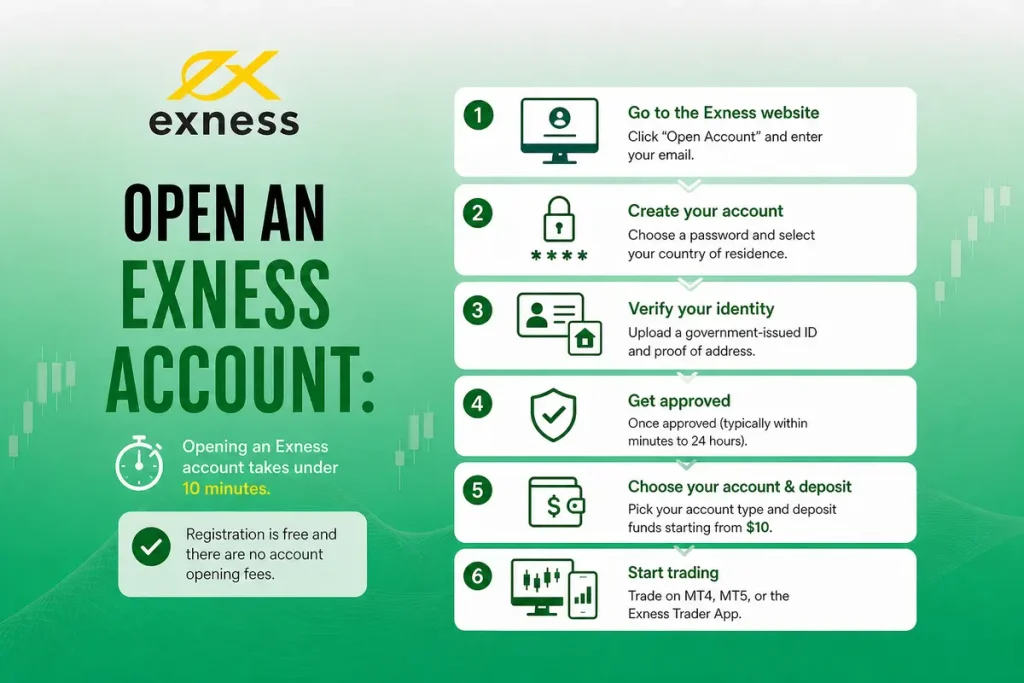
Opening an Exness account takes a few minutes: register with your email and a password, confirm your email and phone, add your personal details, then upload proof of identity and proof of address. Exness says document checks can take up to 24 hours. Your Personal Area starts with a real and a demo Standard MT5 account, and you can trade on MT4, MT5, the Exness Terminal or the Exness Trade app. Registration is free.
Go to the Exness website, enter your email, choose a password and country, then verify your identity by uploading a government-issued ID and proof of address. Once your documents are approved, which is often completed quickly but may take longer depending on the review process.
Pick your account type, deposit funds starting from $10, and start trading on MT4, MT5, or the Exness Trader App. Registration is free and there are no account opening fees.
 WriterAbir KhanWriterWrites the guides · checks every figure against primary sources View profileAbout Abir →
 Market analysisTanbir Habib RiyadForex & Crypto AnalystForex and crypto analyst · technical and fundamental analysis View profileAbout Tanbir →
 Fact-checking & riskJannatul FerdaushFact-Checker & Risk AnalystFact-checks every figure · risk analysis · Applied Statistics, University of Dhaka View profileAbout Jannatul →
 Trading reviewJowel RanaCo-Founder & Forex TraderCo-founder · forex trader · reviews guides from a trader's view View profileAbout Jowel →
 Final approvalRanjan NiskrityFounder, Owner & Forex TraderFounder and owner · forex trader · signs off every guide View profileAbout Ranjan →
Exness is a global forex and CFD broker founded in 2008 whose group companies hold licences from 11 regulators. Registration is entirely online and free. You register, verify your identity, pick an account type and fund it. Below is a walkthrough of every step, the documents you need, common mistakes that cause delays, and the decisions that matter for your trading costs.
What You Need Before You Start
Have these ready before you register. Exness’s document rules are strict, and having the right files ready avoids most delays.
| Requirement | Details |
| Email address | An active email you can access. Exness sends a one-time code to confirm it. |
| Phone number | A working number. Exness verifies it with a code by SMS or call. |
| Proof of Identity (POI) | Passport, national ID or driver’s licence issued by a government, with your photo, valid for at least 3 more months. |
| Proof of Address (POA) | A utility bill, recent bank statement, local tax bill or bank reference letter, showing your full name and address and dated within the last 6 months. |
Identity documents are not accepted as proof of address, even if they show your address. In some regions a single document may cover both identity and address; your Personal Area shows what is accepted for your country.
Step-by-Step Registration
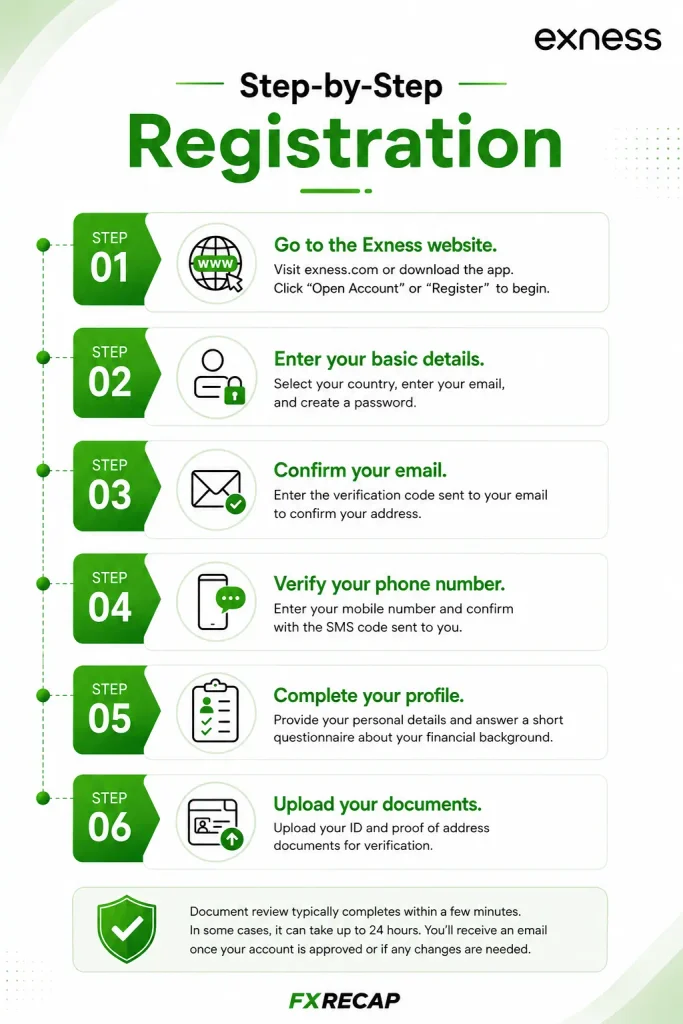
Step 1: Create your account. On the Exness website, select Create an Account. Enter your email address and a password of 8 to 15 characters that mixes uppercase and lowercase letters, numbers and a special character. In some regions you can sign up with Google instead. If a partner referred you, enter their code.
Step 2: Confirm your residency. Tick the box to confirm that you are not a citizen or resident of the United States, then continue. Exness opens the Exness Terminal; you reach your Personal Area from the menu at the top right.
Step 3: Verify your contact details. Confirm your email with the one-time code Exness sends, and verify your phone number with a code sent by SMS or call.
Step 4: Complete your profile. Fill in your name, date of birth, address and country of residence exactly as they appear on your documents, and complete the economic profile questionnaire.
Step 5: Upload your documents. Upload your proof of identity (both sides if it has more than one page) and then your proof of address. All four edges must be visible and the images must be sharp and readable.
Exness says document checks can take up to 24 hours. You receive an email when your documents are approved; if something is rejected, the email explains why and you can upload again.
Pick Your Account Type
Your Personal Area already contains a real Standard MT5 account and a demo Standard MT5 account. You can keep them or open other types. Our Exness account types guide explains the differences. Here is a quick comparison.
| Feature | Standard | Standard Cent | Pro | Raw Spread | Zero |
| Min. Deposit | Method minimum* | Method minimum* | From $200 | From $200 | From $200 |
| Spreads From | 0.2 pips | 0.3 pips | 0.1 pips | 0.0 pips | 0.0 pips |
| Commission | None | None | None | Up to $3.50 per side per lot | From $0.05 per side per lot |
| Execution | Market | Market | Instant | Market | Market |
*Standard and Standard Cent have no fixed minimum beyond the payment method’s own minimum, which varies by region ($10 on Exness’s South African site). The Professional accounts need at least $200, depending on region.
If you are just getting started, the Standard account keeps things simple: no commission, a low deposit and, Exness says, more than 120 currency pairs and instruments. For tighter pricing, the Pro or Raw Spread accounts may suit you once you are comfortable. Read more about how spreads work across each account.
Choose Your Account Currency Carefully
When you create a trading account, Exness asks you to choose its currency. The list is long, including USD, EUR, GBP, BDT, INR, PKR, NGN, ZAR and many more; Standard Cent accounts use cent currencies such as USC.
Pick the currency you will deposit in. Exness applies conversions when you deposit or withdraw in a different currency, so matching them avoids those costs.
You cannot change the account currency after the account is created. If you pick the wrong one, open a new trading account in the right currency from your Personal Area.
Fund Your Account
After choosing your account, open the Deposit tab in your Personal Area. Exness says most payment methods have no deposit fees, though third-party providers may charge their own. Minimum deposit rules depend on the account type, payment method and region.
Payment methods differ by country and include bank cards and local and global payment systems; your Personal Area shows the methods, limits and processing times for your region. Payments must come from accounts in your own name.
Withdrawals must follow Exness’s payment method priority rules, so the simplest approach is to use the same method for deposits and withdrawals.
Download Your Trading Platform
MetaTrader 4 (MT4): A widely used platform with 30 built-in indicators, 9 timeframes and Expert Advisor support, according to its developer MetaQuotes.
MetaTrader 5 (MT5): Adds 21 timeframes, 38 built-in indicators and a built-in economic calendar, according to MetaQuotes.
Exness Terminal (web): No download required. Exness’s browser platform has 100+ indicators, 50 drawing tools and up to eight charts in one workspace, for MT5 accounts.
Exness Trade app (mobile): Available on iOS and Android for MT5 accounts. It combines trading, price alerts, news, and deposits and withdrawals in one place.
Log in to MetaTrader with the account number, server and trading password shown in your Personal Area. Each trading account has its own trading password, separate from your Personal Area password.
Place Your First Trade
With your account funded and your platform set up, you can place your first trade. Before risking real money, consider practising on a demo account first; the one Exness creates for you has $10,000 in virtual funds by default. If you prefer to go straight to live trading, here is the process.
Step 1: Open your chart. In MT4 or MT5, find the instrument in the Market Watch panel (Ctrl+M on desktop). Double-click it or right-click and select “New Order.”
Step 2: Set your lot size. Start small. On a Standard account, 0.01 lots is worth about $0.10 per pip on EUR/USD, or $1 for each $1 move in gold.
Step 3: Set your Stop Loss and Take Profit. Decide your maximum acceptable loss and your target before you execute. Every trade should have a stop loss.
Step 4: Execute. Click Buy if you expect the price to rise, or Sell if you expect it to fall. Your position appears in the Trade tab at the bottom of the platform.
If gold is your focus, our XAUUSD trading guide covers lot sizes and trading hours for gold on Exness.
Mistakes That Delay or Complicate Account Opening
Mismatched personal details. Your name must match exactly across your profile, your ID and your proof of address. Small differences, such as a middle name on one document but not the other, can cause a rejection.
Blurry or cropped photos. All four edges must be visible and the text readable. Use natural light and avoid glare.
Using your ID as proof of address. Exness does not accept identity documents as proof of address in any country. Use a utility bill, bank statement, tax bill or bank reference letter from the last six months, from the country you registered in.
Using the wrong account currency. A currency that doesn’t match your deposits means conversions on every transaction, and it can’t be changed later.
Skipping verification. Unverified accounts have low deposit limits, and some regions block deposits or trading entirely until you are fully verified. Complete verification upfront.
Securing Your Account
Exness asks you to confirm important actions, such as withdrawals and password changes, with your chosen security type: a code by email (the default) or SMS, an authentication app, or push notifications in the Exness Trade app. You can change it in your Personal Area. Use strong passwords and never share them; Exness support never asks for a password and uses a Support PIN to check account ownership.
For a closer look at Exness regulation and how it handles client funds, read our is Exness legit analysis.
What You Can Do After Account Setup
Open Multiple Accounts
From your Personal Area you can open more trading accounts of any type, up to 100 real MT4 and 100 real MT5 accounts. Exness charges no fee for new accounts. You could run a Standard account for casual trading and a Raw Spread account for scalping in the same Personal Area.
Adjust Leverage
You can adjust leverage for each trading account in your Personal Area, from 1:2 up to 1:Unlimited. The maximum you actually get depends on your equity, and unlimited leverage requires equity under $5,000 plus at least 10 closed orders totalling 5 lots. Our Exness unlimited leverage guide explains the rules.
Swap-Free Status
Swap-free status applies to your whole Personal Area and covers a list of popular instruments; clients registered in Islamic countries get swap-free status on all instruments automatically. Exness can remove the status if you regularly hold large positions overnight. Details are in our Exness Islamic account guide.
Copy Trading
Exness closed its Copy Trading service on 25 June 2026, when all existing strategies and investments were closed. We cover the details in our Exness social trading guide.
Withdrawing Funds
Exness says over 98% of withdrawals are processed automatically, 24/7, and processing times depend on the payment method. It charges no withdrawal fees of its own, though third-party providers may. We test actual processing speeds in our Exness instant withdrawal review.
Frequently Asked Questions
Is it free to open an Exness account?
Yes. Exness charges no fee to register or to create trading accounts, and no fees for inactive accounts. You pay trading costs (spreads, plus commission on Raw Spread and Zero) when you trade.
How long does the whole process take?
Registration takes a few minutes. Exness says document checks can take up to 24 hours. Once you are fully verified, you have full access to deposits, withdrawals and trading.
Can I open an account without verification?
You can register, but unverified accounts have low deposit limits, and some regions block deposits or trading until you are fully verified. Complete verification upfront to avoid delays.
What if my documents are rejected?
Exness emails you the reason. Common issues include blurry images, expired documents, name mismatches or using an ID as proof of address. Fix the issue and upload again.
Can I open an account from the United States?
No. Exness asks you to confirm that you are not a US citizen or resident when you register, and it does not offer services to US residents.
Can I have more than one account?
Yes. You can hold up to 100 real MT4 and 100 real MT5 accounts in one Personal Area, each with its own type, platform, leverage and currency.
Can I change my account type after opening?
No. Exness says the account type and trading server can’t be changed, but you can open a new account of any type from your Personal Area. Your original account stays in place.
Which account type should a beginner choose?
Standard. It has no commission, a low minimum deposit and more than 120 currency pairs and instruments. Once you want tighter pricing, open a Pro or Raw Spread account alongside it. Our full Exness review covers each option in depth.
Final Word
Registering takes a few minutes, and Exness checks documents within 24 hours. There are no fees to open an account.
Where most traders run into trouble is not the registration itself but the small decisions they overlook: using an ID as proof of address, picking the wrong account currency, skipping verification, or choosing an account type that doesn’t match their strategy. Take the extra few minutes to get these right.
Match your account currency to your deposits. Complete verification before you try to trade. Consider practising on the demo account first, and if you trade live, start with an amount that fits your risk tolerance and trading plan.
The team behind this guide
Researched, checked and approved by five forex specialists
Every guide is written, fact-checked and edited before it goes live, and updated when the facts change. Spotted an error? Tell us.
Related Articles
 Brokers
10 min read
Brokers
10 min read

 Brokers
11 min read
Brokers
11 min read
 Brokers
10 min read
Brokers
10 min read
 Brokers
15 min read
Brokers
15 min read
 Brokers
9 min read
Brokers
9 min read
 Brokers
9 min read
Brokers
9 min read