

 EUR/USD
  GBP/USD
  USD/ZAR
  EUR/INR
  EUR/GBP
  XAU/USD (Gold)
  XAG/USD (Silver)
  XM Global
  AvaTrade
  RoboForex
  IC Markets
  LiteFinance
  IUX Markets
  FP Markets
  South Africa
  Thailand
  Singapore
  Japan
Japan  Pakistan
  Malaysia
  Philippines
  Brazil
  Bangladesh
  Vietnam
  India
India 
Exness Demo Account
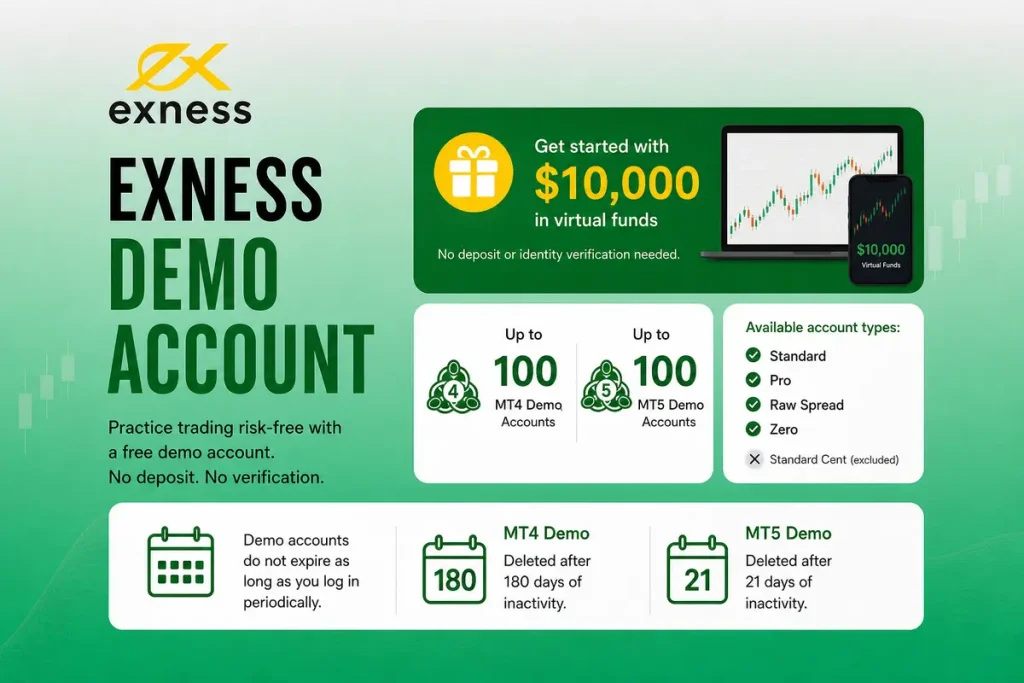
Exness provides registered users with a free demo account that is typically preloaded with virtual funds. You can open and use a demo account and Verify whether new users still receive both demo and live accounts automatically making a deposit, and identity verification is generally not required for demo trading. You can open Verify the current demo account limit from Exness Help Center, covering Standard, Pro, Raw Spread, and Zero account types (Standard Cent is excluded).
Demo accounts remain active if they are used regularly, subject to Exness’ inactivity policy, but MT4 demos are deleted after 180 days of inactivity and Confirm the latest inactivity period from Exness documentation.




A demo account is a practice trading environment that uses virtual money instead of real funds. Demo accounts are designed to closely reflect live market environment, although some differences may exist very closely match what you would see on a live account. The main difference is that demo trading uses virtual funds, although some live market environments may not be fully replicated.
When you register on Exness, the platform Verify whether new users still receive both practice accounts and live accounts automatically. for you: Confirm whether this is still created automatically and a Confirm latest default demo account setup, pre-loaded with a statement that the default virtual balance is determined by Exness and may vary.
You can also create additional practice accounts if you want to test different account types or trading strategies for any of the confirmed supported demo account types. For a full comparison of each type, see our Exness account types guide.
Why Use with a Demo Before Going Live?
Many beginners choose to move quickly to live trading without spending much time on a practice accounts. Practicing on a demo account first can help many beginners build confidence before trading live. Even experienced traders returning to the market after a break can improve with a few days of demo practice. Here is what a practice accounts helps you.
Learn how to use MT4 or MT5 confidently before trading with real money. MT4 and MT5 have dozens of features, order types, and charting tools. The demo allows you learn where everything is and how execution feels before money is on the line.
Test your trading strategy over a larger sample of trades before going live. You can run a new trading approach for 30, 50, or 100 trades in demo environment to see whether it produces consistent results. This allows you to collect performance data without risking real money on a live account without risk.
Account type comparison. Exness allows you open demos of Standard, Pro, Raw Spread, and Zero types. This means you can directly compare how spreads and execution differ across accounts before stating that professional account minimum deposits depend on account type and region, to a professional tier.
Build trading discipline before risking real money. Trading with real money often creates emotions that are difficult to experience on a demo account. But building a disciplined routine on demo first (consistent lot sizing, stop losses on every trade, journaling results) makes the move to live trading far easier.
How to Open an Exness Demo Account
Registration usually takes only a few minutes. If you want a complete walkthrough with screenshots for live accounts too, our Exness account opening guide covers both.
Step 1: Register. Go to the Exness website and click “Open Account” or “Sign Up.” Enter your email address, create a password, and select your country of residence. Verify your email through the confirmation link Exness sends.
Step 2: Access your Personal Area. After email verification, you land in the Exness dashboard (Personal Area). You will already see two accounts listed: a live Standard MT5 and a practice accounts Standard MT5 with $10,000 in virtual funds.
Step 3: Open additional demo accounts. Click “Open New Account,” then select “Demo.” Choose your preferred platform (MT4 or MT5), pick the account type (Standard, Pro, Raw Spread, or Zero), set your base currency, select your leverage, and enter your desired starting balance. Click Create an Account to finish setting up your practice accounts
Step 4: Log in to your platform. Download MT4 or MT5 on desktop or mobile, or use the Confirm current platform availability (no download needed). Log in to the practice accounts you just created using the credentials shown in your Personal Area.
In most cases, you can begin using a demo account without submitting identity documents or making a deposit. Once your demo account is created, you can begin practising immediately.
What You Can Customize on a Demo Account
Exness allows you customize several demo account settings. Each demo account allows you configure the following before or after creation.
| Setting | Options | Can Change Later? |
| Account Type | Standard, Pro, Raw Spread, Zero | No (create a new demo) |
| Platform | MT4 or MT5 | No (create a new demo) |
| Base Currency | Supported currencies depend on Exness’ current offering. | No (create a new demo) |
| Leverage | 1:2 up to 1:Unlimited | Yes, from Personal Area |
| Virtual Balance | Any amount (default $10,000) | Yes, can top up or adjust |
Being able to adjust your leverage and virtual balance makes it easier to test different trading scenarios. You can reset your virtual balance if you lose your demo funds during testing to simulate a larger portfolio. You can also reduce it to practice with an amount closer to what you plan to deposit in a live account.
Account Limits and Expiry Rules
Exness offers a relatively high number of demo accounts compared to many brokers. Below are the current practice accounts limits. Remove unless an official reference is provided.
Maximum number of demos: Up to 100 on MT4 and 100 on MT5, totaling 200 demo accounts per registered profile. If you hit the cap, you can confirm archive functionality on the official Help Center to free up slots. Confirm latest archive policy toward the total, but the archiving process effectively lets you cycle through more over time.
Expiry: Exness practice accounts do not have an expiration date. However, remember that the inactivity policy for demo accounts. MT4 demo accounts are automatically deleted if you do not log in for confirm current inactivity period. MT5 demo accounts are deleted after just confirm current inactivity period of no login activity. If you are running long-term strategy tests or using Expert Advisors (EAs), make sure you log in regularly to keep the account active.
Standard Cent exclusion: practice accounts are available for Standard, Pro, Raw Spread, and Zero account types. The Standard Cent account does not have a demo version. If you want to practice with micro-lot sizes, A Standard demo account with a smaller virtual balance can offer a similar learning experience.
No verification needed: You never need to upload documents or verify your identity to open or use a demo. Registration with just an email is enough.
Which Platforms Support Demo Trading?
MetaTrader 4 (MT4): Available on Windows, macOS, iOS, and Android. Supports 9 timeframes, 30 built-in indicators, and automated trading through Expert Advisors. Check the latest MT4, and check if MultiTerminal is still officially offered, simultaneously from one interface.
MetaTrader 5 (MT5): Available on the same platforms as MT4. Adds 21 timeframes, more order types (including buy stop limit and sell stop limit), depth of market, and a built-in economic calendar. practice accounts on MT5 access. Replace with the current number from Exness.
Exness Terminal (Web): A browser-based platform with no download required. Integrates to verify current integration and supports confirm current feature availability. To access it, log into your Personal Area, click “Trade” on any MT5 account, and select “Exness Terminal.” Demo mode is available directly from this interface.
Exness Trader App (Mobile): Available on iOS and Android. Supports both live and practice accounts, includes an Confirm current app features, price alerts, and built-in TradingView charts. You can switch between demo and live from within the app.
How Demo Differs from Live Trading
The demo replicates live environment very closely, but it is not identical. Understanding these differences can help set realistic expectations.
Execution quality. Demo execution may differ from live market environment because there is no real liquidity to match against. On a live account, you may experience slippage (your order fills at a slightly different price) during fast-moving markets or low-liquidity sessions. These differences may become more noticeable during highly volatile markets during news events.
Emotional impact. Losing virtual funds is very different from risking your own money, which can affect your decisions. Many traders perform well on demo and struggle on live accounts because the psychological pressure of real losses changes decision-making. One practical way to reduce this gap is to use demo money as if it were real: stick to your risk management plan, use a position size that matches your trading plan, and keep a trading journal for every trade.
Liquidity depth. In live trading, large orders may experience different execution depending on market liquidity or face partial fills. Demo accounts do not simulate this because they operate outside real order books. For most individual traders, this difference is usually less noticeable for most retail traders. This is generally more relevant for traders working with high volumes.
Swap rates. Demo accounts may not always reflect the most current swap (overnight) rates. If your trading approach involves holding positions for multiple days, check that Swap calculations on demo may differ from live accounts on the Exness website or trading calculator before moving.
How to Use a Demo Account Effectively
Some traders do not use demo accounts effectively by clicking buttons without a plan, making huge trades with no plan, and then jumping to live trading after a few winning streaks. Doing so limits the value of practising on a demo account. Here are some practical ways to make better use of your demo account.
Match your real environment. Set the demo balance to the amount you plan to deposit for real. If you intend to start live with $200, learn on $200 in demo. Trading with $10,000 in virtual funds teaches you nothing about managing deposit requirements vary by account type and region
Use the same account type you plan to trade live. If you are going to open a Raw Spread account for scalping, demo on Raw Spread. The spreads and commission structure on a Standard demo will give you different cost calculations than what you will face on a live Raw Spread setup. Use the comparison in our Exness spreads guide to understand the cost differences.
Set a minimum trade count before going live. Decide on a number, say 50 or 100 trades, and stick to it. Evaluate your win rate, average risk-to-reward, and largest drawdown over that sample. If the results are not positive, you may improve from spending more time practising before moving to a live account.
learn to place stop losses and take profits on every single trade. This habit needs to be automatic before real money is at risk. Gold and other volatile instruments can move against you fast enough to wipe out an unprotected position in minutes.
Test different sessions. Try trading during different market sessions to understand how volatility changes throughout the day, add explanation for beginners, and Asian hours to see how your strategy performs under different volatility and liquidity environment. If you plan to trade gold. Pay attention to periods when two major trading sessions overlap, as volatility often increases.
When to Move from Demo to Live
There is no fixed timeframe for moving from demo to live trading. Some traders are ready after two weeks. Others need two months. Your trading results matter more than the amount of time spent practising, you have been practicing but what your results look like.
You may be ready to consider live trading if your practice accounts shows a present as guidance rather than a rule, your maximum drawdown stays within a range your real account could comfortably handle, you are following your risk rules consistently (stop loss on every trade, appropriate lot sizing), and you can describe your trading approach clearly enough to explain it clearly and apply it consistently.
If those criteria are met, start with a small live deposit. The Exness Deposit requirements depend on account type, payment method, and region for Standard accounts and $200 for professional tiers. Consider increasing your trading capital only when it fits your trading plan and risk tolerance, once your live results confirm what the demo showed.
Features Worth Knowing About
Expert Advisors (EAs) on Demo
Demo accounts fully support automated trading through Expert Advisors on both MT4 and MT5. You can Confirm all EA functions available on demo in live market environment without any risk. This is the recommended approach to test a new bot before letting it manage real money.
Swap-Free Demo
If you plan to trade on a swap-free (Islamic) account when you go live, keep in mind that demo accounts may not perfectly replicate swap-free environment. The trade execution and spreads will match, but overnight charges (or the absence of them) should be verified separately.
Leverage Testing
Exness lets you set mention eligibility requirements on demo accounts, which is helpful when testing how margin requirements change at different levels. You can confirm the current process at any time without creating a new account. For details on how unlimited leverage works and who qualifies, read our Exness unlimited leverage guide.
Copy Trading Compatibility
The Exness social trading platform operates separately from demo accounts. You cannot use a demo to copy other traders or act as a strategy provider. Confirm latest eligibility, funded account. Learn more in our guide to Exness Social Trading in our Exness social trading guide.
Frequently Asked Questions
Is the Exness demo account free?
Yes. Opening and using a demo account is free to open and use. No deposit, no verification, no hidden charges.
How much virtual money do I get?
The default balance is $10,000, but you can set any amount when creating a new demo. You can also top up or adjust the balance later from your Personal Area.
Does the demo account expire?
There is no set expiration date. However, MT4 demos are deleted after 180 days without a login, and MT5 demos are deleted after 21 days without a login. Log in periodically to keep your account active.
Can I have multiple demo accounts?
Yes. Up to 100 on MT4 and 100 on MT5 (200 total). You can archive unused accounts and create new ones to test different setups.
Is the Standard Cent account available as a demo?
No. The Standard Cent is the only account type excluded from demo. Standard, Pro, Raw Spread, and Zero all have demo versions.
Can I withdraw profits from a demo?
No. Demo accounts use virtual funds. No real money is deposited or withdrawn. Profits and losses exist only within the simulation.
Do demo and live accounts show the same spreads?
They are very similar but not always identical. Demo accounts receive the same price feed, but clarify that slippage depends on market environment during volatile moments that demos do not replicate.
How fast can I switch from demo to live?
Instantly. Both account types exist within the same Personal Area. You can trade demo and live simultaneously on separate platform instances. To fund a live account, deposit methods include bank cards, e-wallets, crypto, and bank transfers, with most deposits processing immediately.
Is Exness a well-regulated broker for both demo and live?
Exness is regulated by the FCA (UK), CySEC (Cyprus), FSA (Seychelles), and FSCA (South Africa). Verify current onboarding jurisdictions. We analyze what this means for fund safety in our is Exness legit review.
Final Word
A demo account is designed to help traders practise without financial risk. It is one of the best ways you have to live in a trading environment without financial consequences. Exness makes it easy to set up, allows eligible users to create multiple demo accounts within the platform limits, and does not impose artificial expiry dates. The traders who get the most out of it are the ones who use it seriously, match their demo environment to their planned live configuration, and track their results like real money is on the line. For a detailed overview at the broker itself, see our full Exness review.

FX Recap helps you find a trusted forex broker that keeps your trades secure and guides you through everything you need to know about FX instruments.

Ranjan Niskrity is a seasoned Crypto and Forex expert at FX Recap with over a decade of market experience. He specialises in verifying broker data, regulatory frameworks, and cryptocurrency trading insights. His rigorous fact-checking ensures every article meets the highest standards of accuracy.
Related Articles
 Brokers
9 min read
Brokers
9 min read
 Brokers
10 min read
Brokers
10 min read