 IC Markets























XM Demo Account
XM provides every registered user with a free demo account featuring customizable virtual funds of up to $100,000 or more. No deposit or identity verification is required to open an account. Users can create up to five demo accounts per email address, available for both standard and ultra-low standard account types on MT4 and MT5 platforms. XM demo accounts do not have a fixed expiration date. However, if a demo account remains inactive for more than 60 days from the last login, it will be permanently closed. If your demo account is closed due to inactivity, you can open a new demo account instantly using the same email address, as long as you have not exceeded the maximum limit of 5 active demo accounts.




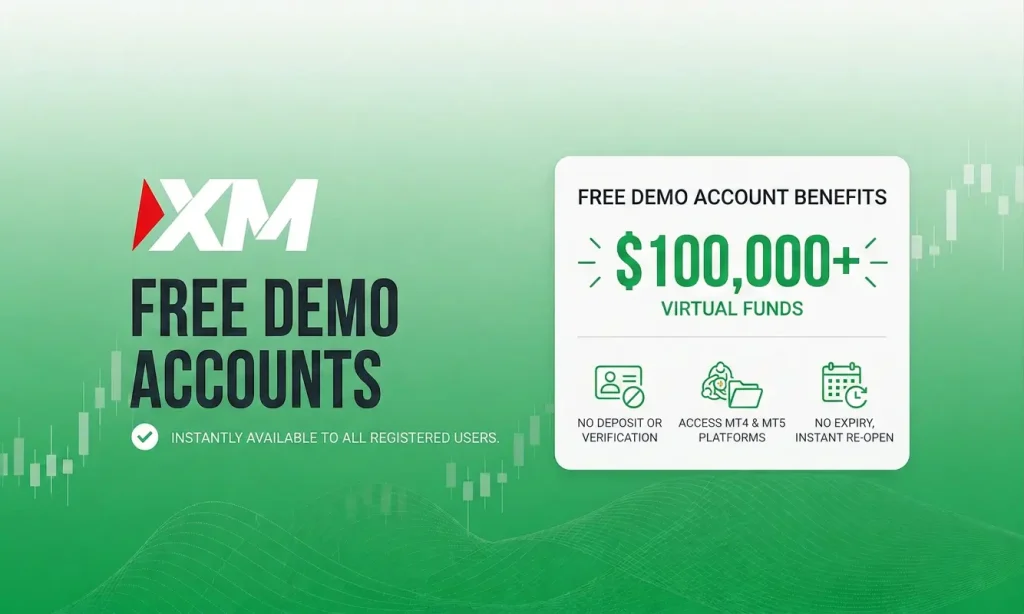
Opening an XM demo account takes about two minutes. No deposit, no ID documents, no card details. But there is one setting on the form that most beginners get wrong, and getting it wrong makes the whole exercise close to useless. Here is the full walkthrough.
It takes about two minutes. You need an email address and nothing else. No deposit, no ID documents, no card details. XM gives you virtual money and you trade real market prices with it.
One setting matters more than all the others: the virtual balance. XM offers you $100,000 by default. Change it. Set it to the amount you would really put into a live account, whether that is $50 or $200. Practising with $100,000 when you plan to deposit $100 teaches you nothing useful, and that mistake is the reason most demo practice does not carry over.
Three things worth knowing before you start.
It expires if you ignore it. XM closes demo accounts after 60 days of inactivity under its European and UK arms, or 90 days elsewhere. Log in now and then, or you will lose it and have to start again.
You can open several. Up to five on one profile, so you can test different settings side by side.
It will not teach you the hardest part. Demo trading has no fear in it. That gap is covered further down, and it is the most honest thing on this page.
What You Need Before You Start
Not much, which is the point.
| You need | You do not need |
|---|---|
| An email address you can open | Any deposit |
| A password, 10 to 15 characters, letters and numbers | ID documents or a passport |
| About two minutes | Card or bank details |
| A rough idea of what you would deposit for real | Any trading knowledge |
Why Use a Demo Before Going Live?
Most new traders skip the demo and go straight to live trading. That is almost always a mistake. Even experienced traders returning after a break benefit from a few days of demo practice. Here is what a demo actually gives you.
Platform familiarity. MT4 and MT5 have dozens of features, order types, timeframes, and charting tools. The demo lets you learn where everything is and how execution feels before money is involved.
Account type comparison. XM offers Standard and Ultra Low Standard as demo account types. You can directly compare how spreads and costs differ between them before deciding which to use live.
Strategy testing. Run a new strategy for 50 or 100 trades under real market conditions. Track your win rate, average risk-to-reward, and largest drawdown. This kind of data is impossible to collect on a live account without risk.
Leverage experimentation. XM lets you set leverage from 1:1 up to 1:1000 on demo accounts. You can test how different leverage levels affect your margin requirements and position sizing before committing real capital.
EA and indicator testing. Demo accounts fully support Expert Advisors and custom indicators on both MT4 and MT5. Test automated systems under live market conditions with zero financial risk.
How to Open an XM Demo Account
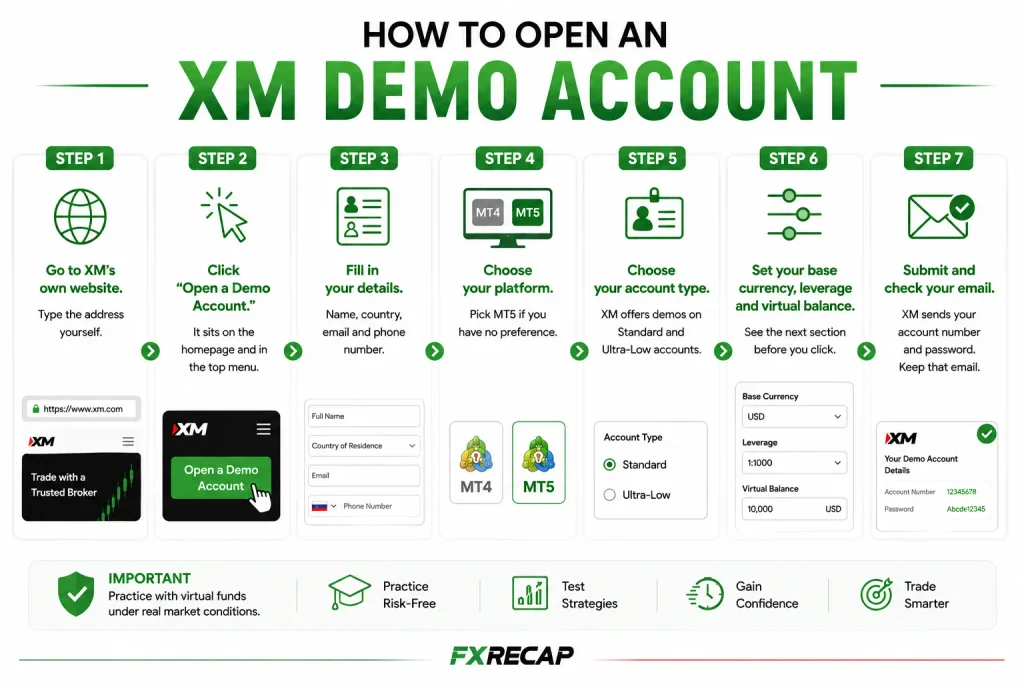
Step 1. Go to XM’s own website. Type the address yourself rather than clicking a link from a search result or an advert. There are copycat sites, and this is the one moment to be careful.
Step 2. Click “Open a Demo Account.” It sits on the homepage and in the top menu.
Step 3. Fill in your details. Name, country of residence, email address and phone number. Your country decides which XM company holds your account, and that changes your leverage limits, so answer it honestly.
Step 4. Choose your platform. MT4 or MT5. If you have no view, pick MT5. It is the newer one and it does everything MT4 does. Pick MT4 only if you have an older tool or indicator that needs it.
Step 5. Choose your account type. XM offers demos on its Standard and Ultra-Low accounts. Pick the one you would open for real, so your practice matches your plan.
Step 6. Set your base currency, leverage and virtual balance. This is the step that matters. See the next section before you click.
Step 7. Submit and check your email. XM sends your account number and password. Keep that email. You cannot change a demo password yourself, and resetting it means contacting XM support with your account number.
The One Setting Most People Get Wrong
XM’s form offers you $100,000 in virtual funds by default, and the dropdown goes far higher.
Take it down.
Here is why. Trading $100,000 of pretend money is nothing like trading $200 of your own. With $100,000 you can open a position that would be reckless on a real account and barely notice. You learn habits that will empty a live account in a week. Position sizing, the skill of choosing how big a trade to place, is one of the few things demo can genuinely teach you, and a fake $100,000 balance stops it teaching you anything.
So set the balance to what you would really deposit. If that is $100, set $100. If it is $200, set $200. It will feel small and uncomfortable. That discomfort is the lesson.
On leverage, the same idea. XM will offer you very high leverage. Choose the level you would use for real, and if you do not know, choose low. Leverage grows your losses exactly as fast as your wins, and practising at 1:1000 teaches you a habit that will hurt you.
You can reset your demo balance later in the Members Area, or ask XM support to set a custom amount.
How to Log In to MT4 or MT5
Download MT4 or MT5 from XM’s site, or use the XM app on your phone.
On a computer, open the platform, click File, then Login to Trade Account. Type the account number and password from your email, and pick the server name XM sent you. That server name matters. If the login fails, it is usually the wrong server rather than the wrong password.
On the app, tap the menu, choose Manage Accounts, add an account, search for XM, and enter the same details.
If your password does not work, contact XM support with your demo account number and registered email. You cannot reset a demo password yourself.
What a Demo Account Will Not Teach You
This is the part most guides leave out, and it is the part that matters.
It will not teach you fear. This is the big one. When your own money is on the line, you close winning trades too early because you are scared to lose the profit, and you hold losing trades too long because closing them makes the loss real. None of that happens with pretend money. Traders who are calm and disciplined on demo often fall apart in their first live week, and they are surprised every time. Nothing about demo prepares you for it.
It will not fully match live conditions. You will read that demo pricing is identical to live. Treat that carefully. Demo fills tend to be cleaner than real ones, and you do not feel slippage, which is when your order fills at a slightly worse price than you asked for, usually during news. Real trading is a little messier than the practice version.
It will not tell you whether you are any good. A profitable month on demo means less than you think, because the emotional half of trading was switched off.
So what is demo for? Three things, and they are worth doing properly.
Learning where the buttons are, so you do not fumble an order with real money. Testing whether a strategy makes sense before you fund anything. And practising position sizing, but only if you set that balance realistically, which is why the section above matters so much.
Use it for those. Do not use it to convince yourself you are ready.
When Your Demo Expires
XM closes demo accounts that sit unused. Under its European and UK arms that is after about 60 days of inactivity. Under its international arm it is about 90 days. Sources differ slightly on the exact numbers, so treat these as a guide and check XM’s current terms.
If yours closes, nothing is lost beyond the practice history. You just open another, which takes another two minutes.
You can hold up to five demo accounts on one profile, which is genuinely useful. Run one at your real intended balance and another to test a strategy you are not sure about, and keep them separate.
When to Move to Live
There is no clean rule, but there is a decent one.
Move when you can follow your own plan on demo for a few weeks without breaking it. Not when you are profitable. Following the plan is the skill. Profit on pretend money is mostly luck plus a fake balance.
When you do move, start smaller than feels sensible. Whatever you practised with, the first live week is a different sport, because now it hurts. Expect to trade worse than you did on demo. Everyone does.
FAQ
Is the XM demo account free? Yes. No deposit, no card details, no ID documents. You need only an email address.
How long does it take to open? About two minutes.
How much virtual money do I get? XM offers $100,000 by default and lets you choose during registration. Set it to what you would really deposit instead, because a fake $100,000 balance teaches bad habits.
Does the XM demo account expire? It closes after a spell of inactivity: roughly 60 days under XM’s European and UK arms, or 90 days internationally. Log in occasionally and it stays open. If it closes, just open another.
How many demo accounts can I have? Up to five on one profile, so you can test different settings side by side.
Can I change my demo password? Not yourself. You have to contact XM support with your demo account number and registered email, so keep the setup email.
Is demo trading the same as real trading? No, and this is the important one. The prices are real but the pressure is not. You feel no fear with pretend money, and fear is what changes how people trade. Expect your first live week to go worse than your demo.
Should I use MT4 or MT5? MT5, unless you have a specific tool that needs MT4. It is newer and does everything MT4 does.


Ranjan Niskrity is a seasoned Crypto and Forex expert at FX Recap with over a decade of market experience. He specialises in verifying broker data, regulatory frameworks, and cryptocurrency trading insights. His rigorous fact-checking ensures every article meets the highest standards of accuracy.
Related Articles
 Brokers
10 min read
Brokers
10 min read

 Brokers
14 min read
Brokers
14 min read
 Brokers
10 min read
Brokers
10 min read
 Brokers
13 min read
Brokers
13 min read